PRODUCT GUIDES
How to use convverse.ai for zoom ?
Learn how to boost your sales calls with convverse.ai, you in-call sales expert for sales . Discover real-time AI prompts, battlecards, and instant meeting summaries to qualify leads and close deals faster.
By Mukesh Kumar, Founder of convverse.ai2 min read
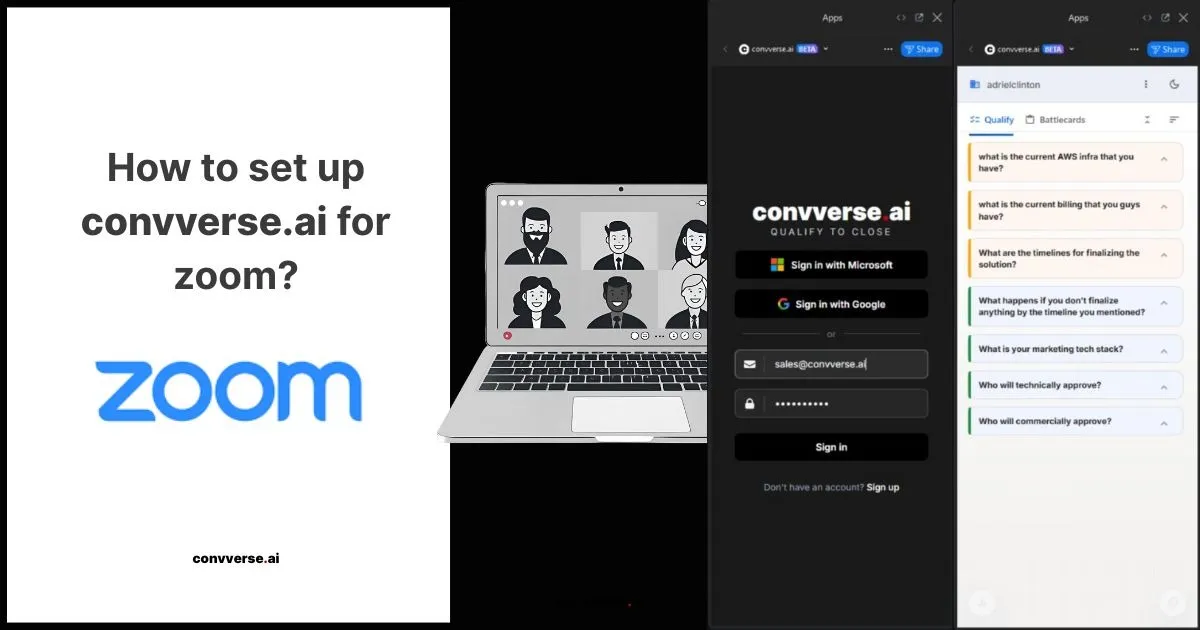
How to set up and use convverse.ai for Zoom
Step 1: Install from the Zoom Marketplace
- Open the Zoom Marketplace, search for convverse.ai, and click Install.
- Approve the requested permissions using the Zoom account that will host meetings.
Step 2: Create or sign in to your convverse.ai account
- After installation, you’ll be redirected to app.convverse.ai to sign up using your email address or sign in if you already have an account.
Step 3: Start a Zoom meeting
- Start or join a Zoom meeting as you normally would.
- convverse.ai joins the meeting as a bot with the host’s authorization.
Step 4: Use convverse.ai during the meeting
- Before or during calls, users can add and publish their own set of questions in convverse.ai based on what they need to learn to progress or win a deal.
- During the live conversation, convverse.ai provides AI sales realtime guidance by capturing prospect responses as they happen and mapping them directly to the user’s questions.
- The app also prompts relevant follow-up questions and provides contextual answers when prospects ask questions, enabling realtime selling and helping sales teams know what to ask and what to answer in the moment.
Step 5: Review the meeting summary after the call
- After the meeting ends, a structured summary is generated in convverse.ai.
- The summary reflects the user-defined questions, captured answers, key highlights, and action items, giving teams a clear historical record across multiple sales calls powered by AI for sales.
Get help if needed
If you face any issues during installation or setup, we’re happy to jump on a call and help you get started. Write to support@convverse.ai and our team will assist you.
How to remove convverse.ai from Zoom?
- Open and sign in to Zoom App Marketplace.
- In the top right corner, click Manage.
- On the left side of the page, click Added Apps. A list of all apps added by you is displayed.
- Identify the convverse.ai app, click Remove. A Remove App window will appear.
- (Optional) Click the drop-down menu to choose the reason for removing this app.
- Click Remove to confirm the removal of this app.
How to delete your data in convverse.ai?
- Visit the convverse.ai Contact Us page.
- Submit a request for account cancellation and data deletion.
- Your data will be permanently deleted within 30-days.
By Mukesh Kumar, Founder of convverse.ai